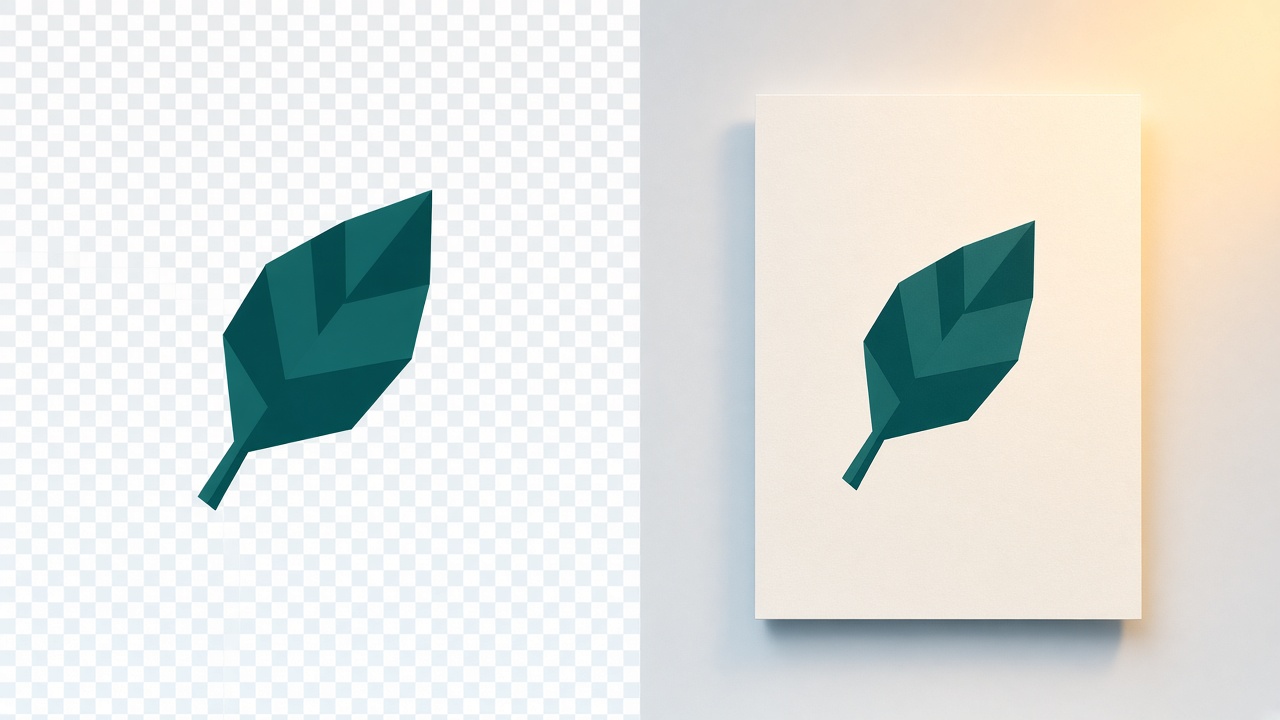
What you actually get
The cutout is a new PNG. Transparent pixels show the checkerboard on the page, and they stay see-through in the file while Transparent is selected. JPEG cannot store that, so the download is a PNG even when the photo you dropped was a JPEG.
White, black, red, or blue flattens the same cutout onto that color. Use a color when the next app refuses a transparent file. Hold Compare to see the original photo under the cutout.
How to do it
- Drop a JPEG, PNG, or still WebP. The page refuses a file over 50 MB or 32 megapixels before the model loads.
- On the first photo, wait for the model file, about 84 MB, plus a smaller runtime. Later photos in this browser skip that download. The photo itself is not uploaded.
- Paint Erase to take more away, or Restore to put an edge back. The brush runs from 8 to 72. Undo steps back. The download matches the picture on screen, including its pixel size.
Where the edges go wrong
Hair, fur, glass, and grass the subject is standing in can stay rough. This is not a promise of the same edge as a paid studio tool. Check the PNG before you publish it. A logo or a flat graphic is often cleaner left as a PNG than run through a photo model.
An iPhone HEIC has to become a JPEG or PNG first, with HEIC to JPG. If the finished cutout has to be a JPEG for a form, PNG to JPG puts it on white.
More guides
- PNG vs JPG: which should you use?
12 November 2026
- How to reduce image file size without losing too much quality
12 November 2026
- HEIC vs JPG: why iPhones use HEIC
12 November 2026